
ConSys Update Procedure - all instances
Notes:
For ConSys install on a new computer: See ISA OneNote, Controls|ConSys|Installation|ConSys PowerShell installation instructions
For computers at IFA/ISA with ConSys not updated after 6. August 2025: If ConSys on the computer has not been updated/installed after this date, please contact Torben Worm (tw@phys.au.dk) to get ConSys updated. ConSys versions on these computers are before 1.48.948 and ConSys Setup folder on the desktop is with the previous setup scripts the previous setup scripts
Most computers include scripts to maintain ConSys instances on the computer and is found in the "ConSys Setup" folder on the desktop. The scripts can be used to start, stop and update ConSys instances. On computers without these scripts follow the Consys alternative update method
Recommended way to turn of or reboot computer with ConSys devices
To ensure that ConSys services is shutdown correctly when restarting or turning off a computer that services ConSys devices it is recommended to use either the 'Stop ConSys Services & ShutDown' or 'Stop ConSys Services & Restart'. These scripts are found on the desktop and in the 'ConSys Setup' folder on computers with ConSys setup.
Updating all ConSys instances to the newest available ConSys version:
- Open 'ConSys Setup' folder found on the desktop
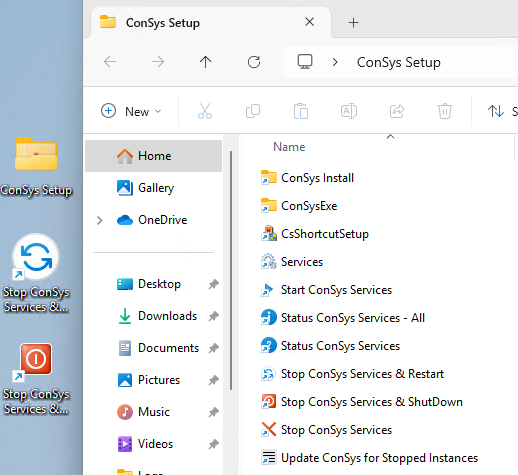
- Stop all ConSys programs - including programs using CsAPI
- Stop 'ConSys Kernel' for instances that should be updated:
- Run the script 'Stop ConSys Services' to stop all ConSys instances
- Or stop ConSys instances that should be updated:
- Open 'Services' found in the 'ConSys Setup' folder ('Run as administrator')
- Stop 'ConSys Kernel' service(s) for instances to update:
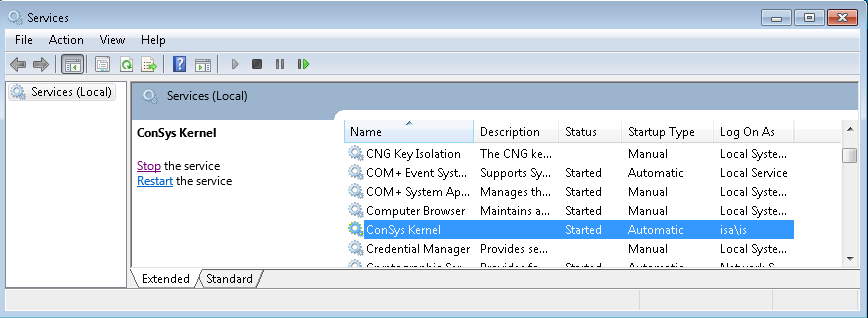
- Wait until the service(s) is stopped. If a service is not stopped within 2 minutes: Kill it from the task manager or reboot computer and start from the top again
- Copy the newest version of the ConSys executables to stopped instances:
- Run the Copy script 'Update ConSys for Stopped Instances' found in the 'ConSys Setup' folder.
- The install script may call other installers to update the Miscrosodt Visual C++ redistributables. In this case, install these as well (there will typical be two installers, one for x32 and one for x64). If restart is required install both and wait with the restart until the ConSys setup script has finished.
- When the copying is finished two status reports are opened in notepad
- Check the log files to ensure that all files are copied - if not so it is probably due to a running ConSys application. Close the application and try to run the script again.
- Run the Copy script 'Update ConSys for Stopped Instances' found in the 'ConSys Setup' folder.
- Start 'ConSys Kernel' service(s) again: Run 'Start ConSys Services'
- Remark: As part of the update, the previous executables and persistent files has been copied to the folder(s) '.\ConSys\old\Previous'. If wanted these files can be preserved by
renaming the 'Previous' folder, typical to
<year><month><day><note>, ex.
20201224_BeforeXXX
Remember to clean up/delete older outdated backup folders in the '.\Old' directory.
Last Modified 03 October 2025